
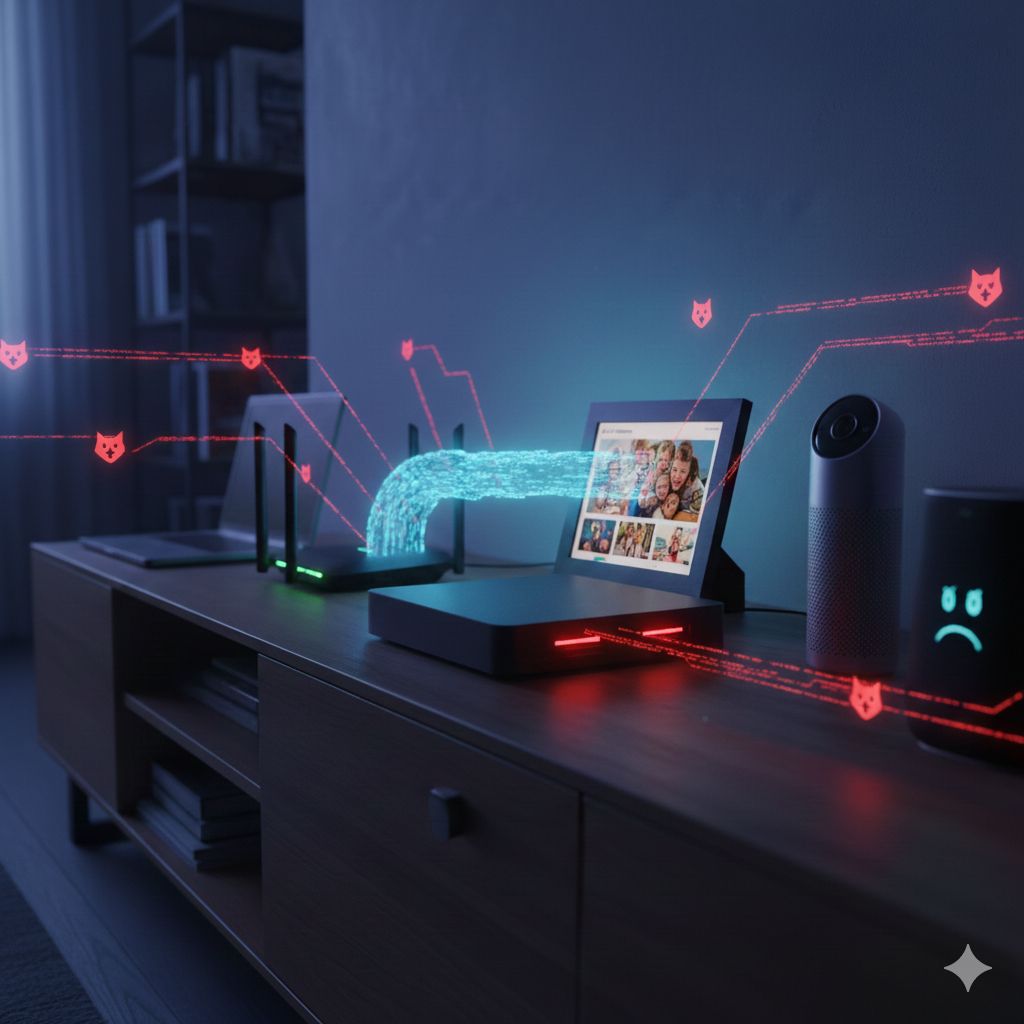
This is an security awareness blog post I put together for my company with the help of Gemini. Feel free to grab and use within your own security awareness program.
The recent emergence of the Kimwolf botnet, as detailed by KrebsOnSecurity, serves as a reminder that your home router is a potential target for cybercriminals.
According to the report, Kimwolf has already infected over 2 million devices—primarily cheap Android TV boxes and "smart" photo frames. What makes this botnet particularly dangerous is its ability to "tunnel back" into your local network, using infected devices as a bridge to attack other gadgets behind your firewall.
If you’re worried about whether your network has been compromised, here is a guide on how to audit your local environment and evict any digital squatters.
1. Identify "The Usual Suspects"
The Kimwolf report highlights a specific class of vulnerable devices: unbranded or "budget" Android TV boxes and smart home gadgets. * The Risk: Many of these ship with ADB (Android Debug Bridge) enabled by default. This is a developer tool that allows full administrative access without a password.
The Action: Check any cheap streaming boxes (SuperBOX, X96Q, MX10, etc.) or smart frames you’ve bought recently. If you can’t verify their security settings or they don't receive regular firmware updates, they are high-risk.
2. Map Your Network
You cannot protect what you cannot see. You need a complete list of every device currently connected to your Wi-Fi or Ethernet.
Log into your Router: Open your browser and type in your router’s IP address (often
192.168.1.1). Look for a tab labeled "Connected Devices," "DHCP Client List," or "Attached Devices."Identify the Unknowns: If you see a device named "Unknown" or a string of random characters, look at its MAC Address. You can plug this into a MAC Vendor Lookup tool to see who manufactured the internal chip. If it says a manufacturer you don't recognize (like a generic Chinese electronics firm), investigate further.
Use a Network Scanner: Download a tool like Fing (mobile) or Angry IP Scanner (desktop). These tools will scan your local IP range (usually
192.168.1.x) and list every active device.
3. Look for "Residential Proxy" Behavior
Kimwolf monetizes infected devices by selling your bandwidth as a "residential proxy." This means strangers are routing their internet traffic through your house to hide their identity.
Symptoms: * Unexplained spikes in data usage.
Drastic slowdowns in internet speed.
Getting "CAPTCHA" prompts more often than usual (because your IP is being flagged for bot-like behavior).
Check Your DNS: Kimwolf often uses DNS-over-TLS or redirects DNS traffic to bypass restrictions. Ensure your router is set to use a trusted DNS provider (like Google 8.8.8.8) and hasn't been tampered with.
5. Secure and Segregate
If you find a suspicious device or simply want to prevent a Kimwolf-style infection, take these steps:
Isolate IoT Devices: If your router supports it, create a "Guest Network" and put all your TV boxes, smart lights, and cameras on it. This prevents a compromised TV box from "tunnelling back" to your main computer or NAS where you store sensitive files.
Disable UPnP: Universal Plug and Play (UPnP) allows devices to automatically open ports on your router. This is a favorite entry point for botnets. Disable it in your router settings.
Kill the Power: If you have one of the cheap Android boxes mentioned in the Krebs report and cannot find a way to disable ADB or update the firmware, the safest move is to stop using it. As the report notes, these devices often come pre-infected at the factory level.
Summary
The Kimwolf botnet thrives on the "internal trust" of home networks. By auditing your connected devices today and moving "dumb" smart gadgets to a segregated guest network, you can ensure your home remains a private sanctuary rather than a node in a global cybercrime machine.